
Content Migration Manager extension guide
Last updated: March 25, 2026
1. Install
The installation process is straightforward and takes less than a minute to complete. Depending on the browser you are using, please follow the appropriate installation steps for either Chrome or Firefox.
Chrome extension
- Open the installation link.
- On the Chrome web store page click "Add to Chrome" button.
- Chrome will prompt you to install the extension.
- Click "Add extension" when prompted.
- Once installed, the extension icon will appear in the toolbar under the Extensions (puzzle) icon.
- Find Content Migration Manager extension.
- Click the pin icon to keep it visible in the toolbar.
Firefox extension
- Open the installation link.
- Firefox will prompt you to install the extension from Loorex.com.
- Click "Continue to Installation" when prompted.
- Firefox will prompt you to add the Content Migration Manager extension and display the required permissions.
- If you plan to use the extension in private windows, check "Allow extension to run in private windows".
- Click "Add" to install the extension.
- Once installed, the extension icon will appear in the toolbar under the Extensions (puzzle) icon.
- Find Content Migration Manager extension.
- Click the gear icon and then Pin to Toolbar menu item to keep it visible in the toolbar.
2. Configure
To connect the Content Migration Manager extension with your account at Loorex.com, you need to create an Access Token and then use it in the extension.
Please follow these steps:
- On the Loorex.com website, go to Profile → API Keys.
- Click the "Create new" button.
- In the dialog box, enter a name to easily identify the purpose of the Access Token (for example, Content Migration Manager extension).
- Click the "Create new" button to generate the token.
- The Access Token will be displayed. Copy it and store it in a safe place, as you will not be able to view it again once the dialog box is closed.
- In your browser toolbar, click the Content Migration Manager extension icon.
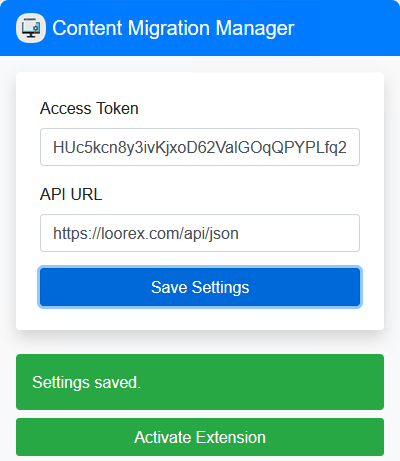
- In the popup window, paste the Access Token into the Access Token field.
- Click the "Save Settings" button.
Final Content Migration Manager configuration will look as follows:
3. Usage
To migrate your content to the Loorex.com platform using the Content Migration Manager extension, please follow these steps:
- Navigate to the webpage that contains the structured content you want to migrate. For example, you can use our test page.
- In your browser toolbar, click the Content Migration Manager extension icon.
- In the popup window, click the "Activate Extension" button.
- The extension toolbar will appear on the webpage:

- In the dropdown labeled "Select an entity", choose the test to which new questions will be added.
- If required use the "Refresh Test List" button to update the available options in the dropdown.
- Click the "Submit Content" button to submit the current page content and add new questions to the selected test.
Once you have finished migrating the content, you can remove the extension toolbar from the page by following these steps:
- In your browser toolbar, click the Content Migration Manager extension icon.
- In the popup window, click the "Disable Extension" button.